PVE 独显直通功耗优化
及时关闭Windows VS 保持Windows待机?
答案是保持Windows 待机。
关闭 Windows 虚拟机并不会使真实硬件断电,因此显卡仍会保持通电运行状态。由于显卡已经直通给了 Windows,PVE host 已经失去了对显卡的控制权。
这会导致显卡缺乏有效的软件控制,可能一直处于高负荷运转状态,反而造成更高的功耗和更大的噪音。
但是众所周知,Windows的待机功耗不尽如人意,有没有一种可以关闭Windows但不让核显失控的方式呢?
备用系统
我们可以创建一个尽可能精简和低功耗的系统,当Windows关闭之后来以最低成本接管显卡。
我选择创建一个Archlinux VM,可以根据我的需求高度自定义,比如不用compositor,display manager和DE/WM只需要tty。如果觉得麻烦也可以直接安装Debian系统(alpine 因为使用musl缘故无法安装NVIDIA官方驱动)
创建Archlinux VM
使用如下配置创建Archlinux虚拟机,然后进行安装。
⚠️ 请完全按照截图设置,除非你知道你在做什么。
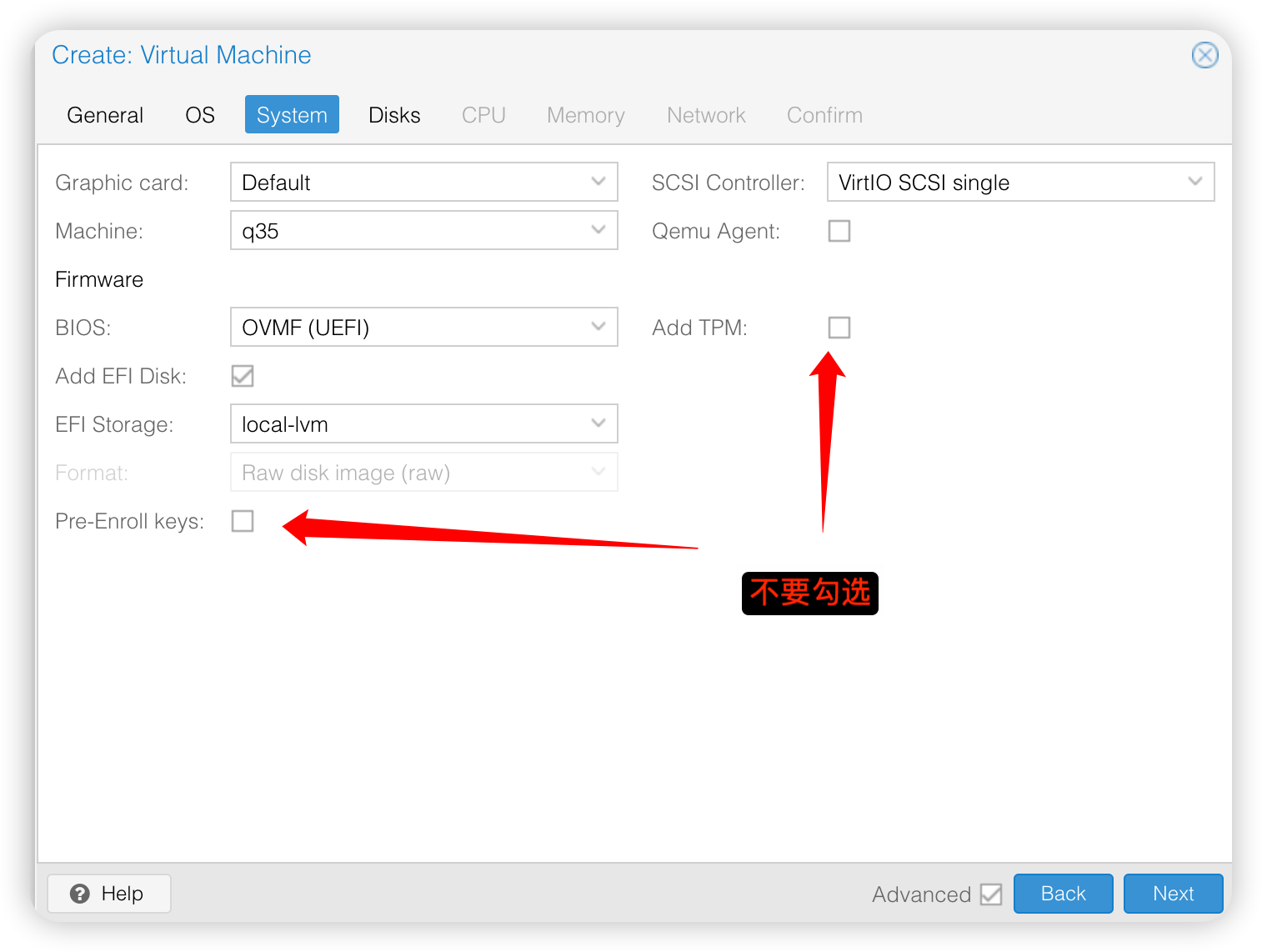
具体安装过程参考: https://wiki.archlinux.org/title/Installation_guide, 下面是一些要点。
Boot loader
我采用了systemd-boot,也可选grub,参考: https://wiki.archlinux.org/title/Arch_boot_process#Boot_loader
安装systemd-boot到boot分区
bootctl install
/boot/loader/loader.conf
default  arch.conf
timeout  4
console-mode max
editor   no
/boot/loader/entries/arch.conf
title   Arch Linux
linux   /vmlinuz-linux
initrd  /initramfs-linux.img
options root=UUID=xxxxxxxx-xxxx-xxxx-xxxx-xxxxxxxxxxxx rw consoleblank=60
consoleblank=60 , 用来自动在60s idle后关闭视频输出,减少显示开销。
UUID 可以通过
sudo blkid获取,也可以:
a.root=PARTUUID=xxxx
b.root=/dev/sda2
c.root=LABEL=root
(可选) 创建arch-fallback configuration: /boot/loader/entries/arch-fallback.conf
title Arch Linux (fallback initramfs)
linux /vmlinuz-linux
initrd /initramfs-linux-fallback.img
options root=UUID=xxxxxxxx-xxxx-xxxx-xxxx-xxxxxxxxxxxx rw
网络配置
这里依旧使用systemd,不需要安装额外的软件。 参考https://wiki.archlinux.org/title/Systemd-networkd
💡假设当前网络接口是ens18. 可使用
ip link,来查看实际接口名称
创建配置文件 /etc/systemd/network/20-wired.network 可以选择以下两种方式:
-
DHCP - 自动获得IP 地址
[Match] Name=ens18 [Link] RequiredForOnline=routable [Network] DHCP=yes -
Static IP - 使用静态IP地址
[Match]
Name=ens18

[Network]
Address=10.1.10.9/24
Address=2001:db8:1234:5678::1/64
Gateway=10.1.10.1
Gateway=fe80::1
DNS=10.1.10.1
DNS=2001:db8:1122::3344:1
启动网络服务
# 启用systemd DNS service
systemctl enable --now systemd-resolved
# 启用systemd netowrkd
systemctl enable --now systemd-networkd
# 查看接口状态
networkctl
开启ssh server
https://wiki.archlinux.org/title/OpenSSH
sudo pacman -S openssh
sudo systemctl enable --now sshd
可选安装
yay: 建议使用archlinuxcn源安装预编译版qemu-guest-agent: qemu虚拟机增强服务,需要在VM Options 中开启 Qemu Agent配合使用
电源管理
使用 tlp 来管理电源,可选 powertop --auto-tune
# 安装tlp
sudo pacman -S tlp
# 启动tlp service
sudo systemctl enable --now tlp
默认情况下,tlp会在AC/默认模式下启用Performance profile. 需要进行修改: /etc/tlp.conf
TLP_DEFAULT_MODE=SAV     #默认省电模式
TLP_PERSISTENT_DEFAULT=1 #当前模式固定为默认
重启服务,并检查
sudo systemctl restart tlp
sudo tlp-stat -s
--- TLP 1.9.0 --------------------------------------------

+++ System Info
System         = QEMU pc-q35-10.1 Standard PC (Q35 + ICH9, 2009)
BIOS           = 4.2025.05-2 Proxmox distribution of EDK II
OS Release     = Arch Linux
Kernel         = 6.17.9-arch1-1 #1 SMP PREEMPT_DYNAMIC Mon, 24 Nov 2025 15:21:09 +0000 x86_64
/proc/cmdline  = initrd=\initramfs-linux.img root=/dev/sda3 rw consoleblank=60
Init system    = systemd 258
Boot mode      = UEFI
Suspend mode   = [s2idle]

+++ TLP Status
tlp            = enabled, last run: 15:24:37, 39 sec(s) ago
tlp-rdw            = not installed
tlp-pd         = not installed
Power profile  = power-saver/SAV
Power source   = unknown
⚠️ 在PVE VM中需要避免使用
systemctl suspend,因为虚拟机无法控制硬件的电源 即使是s2idlemode也会造成GPU crashs2idle(Suspend-to-Idle) is designed to put all devices into a low-power state to save energy. The kernel iterates through every device driver (network, disk, USB, GPU) and tells them to execute their "suspend" routines. For the NVIDIA driver, this means stopping rendering, saving VRAM state, and powering down the card's engines. but it might not be supported.
安装独显驱动
一般情况Nvidia 独显只需要安装官方驱动即可,具体参考: https://wiki.archlinux.org/title/NVIDIA
sudo pacman -S nvidia
配置显卡直通
这一步跟PVE 独显直通windows#配置显卡直通 一致, 但由于同时配置的显卡直通,所以Windows和Archlinux不能同时启动
配置好后,关掉Windows再启动Archlinux,这时PVE Console将无法连接,画面只会从显卡的HDMI/DP接口输出。等待一段时间,使用ssh登录即可查看当前Nvidia GPU 数据
[kevin@Archlinux ~]$ nvidia-smi
Wed Dec 10 15:33:20 2025
+-----------------------------------------------------------------------------------------+
| NVIDIA-SMI 580.105.08             Driver Version: 580.105.08     CUDA Version: 13.0     |
+-----------------------------------------+------------------------+----------------------+
| GPU  Name                 Persistence-M | Bus-Id          Disp.A | Volatile Uncorr. ECC |
| Fan  Temp   Perf          Pwr:Usage/Cap |           Memory-Usage | GPU-Util  Compute M. |
|                                         |                        |               MIG M. |
|=========================================+========================+======================|
|   0  NVIDIA GeForce RTX 4070 ...    Off |   00000000:01:00.0 Off |                  N/A |
| N/A   36C    P8              5W /   80W |      34MiB /   8188MiB |      0%      Default |
|                                         |                        |                  N/A |
+-----------------------------------------+------------------------+----------------------+

+-----------------------------------------------------------------------------------------+
| Processes:                                                                              |
|  GPU   GI   CI              PID   Type   Process name                        GPU Memory |
|        ID   ID                                                               Usage      |
|=========================================================================================|
|  No running processes found                                                             |
+---------------------
可以看到当前GPU功耗成功降到P8并且只有5W待机功耗,说明配置成功,✌️
配置自动接管hook
可以使用snippet来帮我们自动在Windows启动的时候关闭Archlinux,关机之后启动Archlinux.
💡我的Windows的vmid是101, Archlinux的vmid是104
cd /var/lib/vz/snippets
touch nvidiavm.sh
chmod +x nvidiavm.sh
cat > nvidiavm.sh << "EOF"
#!/bin/bash
VMID=$1
PHASE=$2
DUMMY_VMID=104

if [ "$VMID" = "101" ]; then
  if [ "$PHASE" = "pre-start" ]; then
    echo "Win10 VM pre-start: Stopping Nvidia Dummy VM"
    qm stop $DUMMY_VMID

  elif [ "$PHASE" = "post-stop" ]; then
    echo "Win10 VM post-stop: Starting Nvidia Dummy VM"
    qm start $DUMMY_VMID
  fi
fi
EOF
把它添加到Windows VM中:
qm set 101 --hookscript local:snippets/nvidiavm.sh
可以在日志中查看脚本运行情况
journalctl -b | grep "Nvidia Dummy VM"
Dec 09 14:11:04 pve qmeventd[82872]: Win10 VM post-stop: Starting Nvidia Dummy VM
Dec 09 19:29:09 pve qmeventd[192077]: Win10 VM post-stop: Starting Nvidia Dummy VM
参考资料
https://wiki.archlinux.org/title/TLP https://forum.proxmox.com/threads/high-power-usage-for-passthrough-gpu-when-vm-is-stopped.131346/